Add MFA to AD FS with an authentication adapter
An MFA provider that offers an AD FS authentication adapter lets you require a second factor for any relying party that signs in through AD FS. The adapter works with relying parties that use WS-Federation as well as SAML 2.0, including cloud services such as Microsoft 365, Google Workspace, the AWS Management Console, GitHub, Salesforce, and intranet web applications.
Overview#
This guide describes how to install the adapter on each AD FS server, register it with AD FS, add it to the multi-factor authentication policy, and test it with a user. Product names, file names, and settings below are generic. Use the names from your MFA provider's package where they differ.
Environment#
- An MFA service that supplies an AD FS authentication adapter package and a SAML or HTTPS endpoint for the second factor.
- Windows Server 2012 R2 AD FS or later.
Prerequisites#
- A working AD FS farm with a public DNS name (for example
adfs.example.com) and a valid TLS certificate. - An MFA service endpoint (for example
mfa.example.com) with a public DNS name and a valid TLS certificate. - The adapter package from your MFA provider, referred to here as
MfaAdapterPackage. - The public certificate of the MFA service, exported in Base-64 encoded X.509 (.CER) format. If the MFA service and AD FS share a wildcard certificate, you can reuse it.
- Local administrator access to every AD FS server, with permission to run PowerShell scripts.
- Users enrolled in the MFA service, with a user name that matches the Active Directory attribute you map in the configuration file (for example
sAMAccountName).
Installation#
Perform these steps on the primary AD FS server first, then repeat them on every other server in the farm.
1: Copy the adapter package to the AD FS server and extract it. This guide assumes the folder C:\MfaAdapterPackage\Setup.
2: Export the MFA service certificate.
- Open the Certificates snap-in in the Microsoft Management Console (MMC) and locate the MFA service certificate, or open the service URL in a browser and export the certificate from the connection details.
- Export it as Base-64 encoded X.509 (.CER).
- Save it as
C:\MfaAdapterPackage\Setup\sslcert.cer.
The adapter uses this certificate to validate responses from the MFA service.
3: Edit the configuration file C:\MfaAdapterPackage\Setup\MfaAdapterConfiguration.json to match your environment.
SecondFactorEndpointis the URL of the MFA service that performs the second factor.ServiceProvider.EntityIdis the AD FS server address.IdentityProvider.EntityIdis the MFA service address.IdentityProvider.Certificateis the file name of the MFA service certificate.
{
  "Settings": {
    "SecondFactorEndpoint": "https://mfa.example.com/saml/adfs",
    "MinimalLoa": "urn:example:assurance:level2",
    "schacHomeOrganization": "example.com",
    "ActiveDirectoryName": "example.com",
    "ActiveDirectoryUserIdAttribute": "sAMAccountName"
  },
  "ServiceProvider": {
    "SigningCertificate": "",
    "EntityId": "https://adfs.example.com"
  },
  "IdentityProvider": {
    "EntityId": "https://mfa.example.com",
    "Certificate": "sslcert.cer"
  }
}| Setting | Value to use |
|---|---|
SecondFactorEndpoint |
The MFA service URL. Replace mfa.example.com with your service address. |
MinimalLoa |
The minimum level of assurance your provider documents. Leave the provider default. |
schacHomeOrganization |
Your Active Directory forest name. |
ActiveDirectoryName |
Your Active Directory domain name. |
ActiveDirectoryUserIdAttribute |
The attribute that holds the user name in the MFA service. Typically sAMAccountName. |
ServiceProvider.SigningCertificate |
Leave empty. The installer creates a signing certificate. |
ServiceProvider.EntityId |
The AD FS server address, for example https://adfs.example.com. |
IdentityProvider.EntityId |
The MFA service address, for example https://mfa.example.com. |
IdentityProvider.Certificate |
sslcert.cer, the certificate exported in step 2. |
4: Open Windows PowerShell as an administrator and change to the setup folder.
PS C:\Windows\system32> cd C:\MfaAdapterPackage\SetupIf your execution policy blocks the installation script, allow scripts for the current session only. This avoids changing the machine-wide policy.
PS C:\MfaAdapterPackage\Setup> Set-ExecutionPolicy -Scope Process -ExecutionPolicy RemoteSigned5: Run the installation script.
PS C:\MfaAdapterPackage\Setup> .\Install-MfaAdapter.ps1The script installs the adapter assembly, creates the event log, creates or exports a signing certificate, and registers the adapter with AD FS. If it does not register the adapter, run the registration yourself on the primary server:
PS C:\> Register-AdfsAuthenticationProvider -TypeName "<AdapterTypeName>, <AssemblyName>, Version=<version>, Culture=neutral, PublicKeyToken=<token>" -Name "MfaAdapter"
PS C:\> Restart-Service adfssrv
Use the type name and assembly details from your provider's documentation.
6: When the installation finishes, store the signing certificate (PFX) and its password in a secure location, such as a password manager or secrets vault. Do not share the password in email or chat. You need both to install the adapter on every other AD FS server in the farm.
7: Repeat steps 1 through 6 on each remaining AD FS server in the farm, importing the same signing certificate instead of creating a new one when the installer asks.
Configuration#
Add the adapter to the multi-factor policy#
For AD FS 2012 R2:
Open the AD FS Management console on the primary AD FS server. Go to AD FS > Authentication Policies, then select Edit Global Multi-factor Authentication or select Edit under Multi-factor Authentication > Global Settings.
For AD FS 2016 and later:
Open the AD FS Management console on the primary AD FS server and go to AD FS > Service > Authentication Methods.
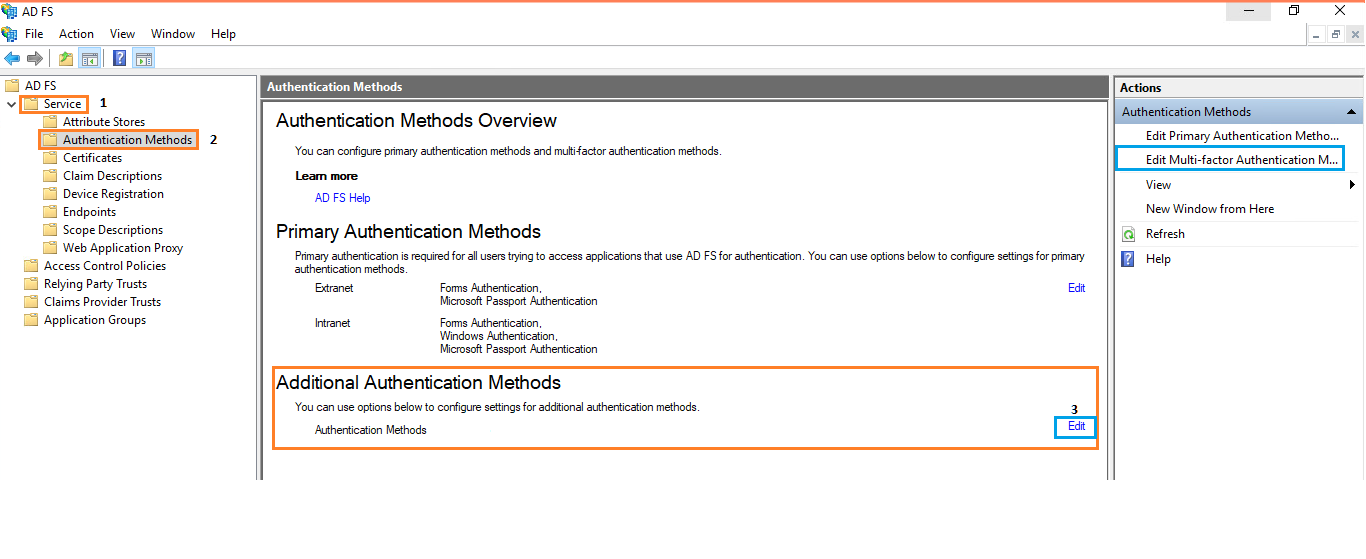
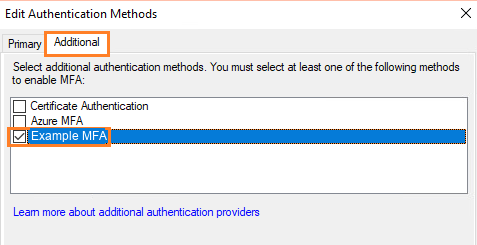
1: Select Edit under Additional Authentication Methods, or select Edit Multi-factor Authentication Methods in the Actions pane.
2: Select the check box next to the adapter, then select Apply and OK.
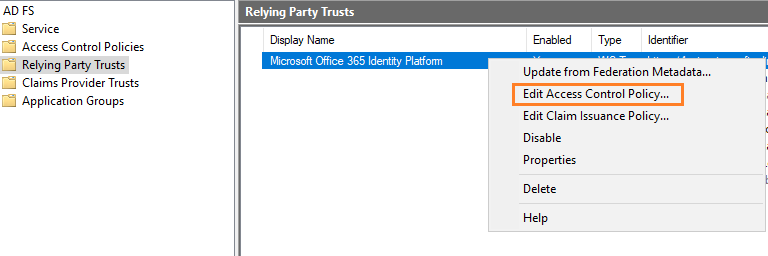
3: In Relying Party Trusts, right-click the relying party you want to protect, then select Edit Access Control Policy.
4: Choose a policy that requires MFA, such as Permit everyone and require MFA, then select OK. The policy applies to the selected relying party right away.
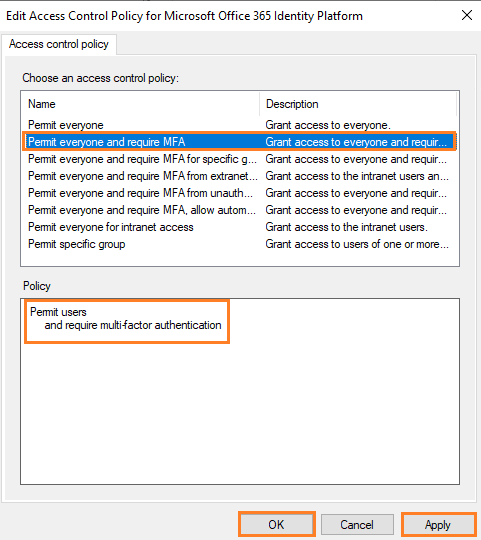
This configuration makes AD FS ask for the second factor after the user's password is accepted and before the user can reach the application. To enable MFA for all relying parties, edit the global multi-factor settings instead of the individual access control policy.
For more advanced scenarios, you can require MFA only for extranet access or only for certain groups or devices. See Microsoft's documentation on access control policies in AD FS for the available conditions.
Allow the AD FS server to reach the MFA service#
Make sure that every AD FS server can reach the MFA service endpoint over HTTPS (TCP 443), and that your MFA provider is configured with AD FS as an application or service provider. The exact steps depend on the provider. Typically you create an application of type SAML with the AD FS address as the service provider entity ID, and grant it to the users or groups that need MFA.
Logs#
The adapter writes events to the Windows Event Viewer. Open Event Viewer and look under Applications and Services Logs for a log created by the adapter. Also check Applications and Services Logs > AD FS > Admin for AD FS events.
Test the sign-in#
After you enable MFA for a relying party, test it by opening the application's sign-in page. The flow is: web application, AD FS primary authentication, MFA verification, then redirect back to the application.
1: Open the service provider URL. For Microsoft 365, go to https://office.com and select Sign in.
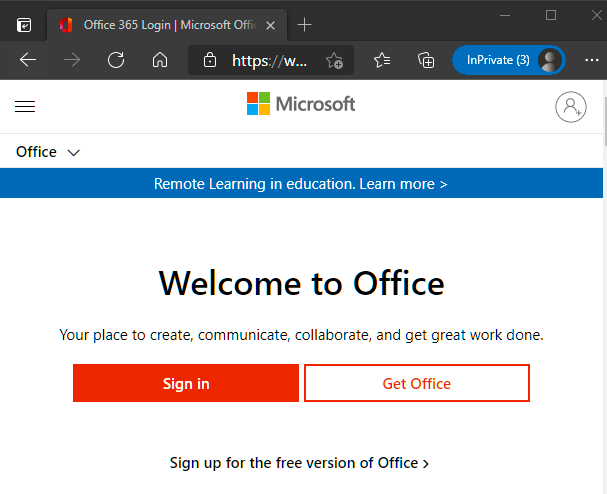
2: Enter a test user's address, for example user@example.com, and select Next. Microsoft 365 redirects the browser to AD FS for primary authentication.
3: Enter the user's domain credentials and select Sign in.
4: AD FS then shows the MFA page of your provider, with the second-factor methods that are configured for the user.
5: Complete the second factor, for example by approving a push notification on the user's device or entering a one-time code.
6: After a successful verification, the user is signed in to the application.
Roll back#
To stop requiring the adapter without uninstalling it, clear the adapter's check box under Authentication Methods and remove the MFA requirement from the relying party's access control policy. To remove the adapter completely, run the uninstall script from the package on each AD FS server, or unregister it manually:
PS C:\> Unregister-AdfsAuthenticationProvider -Name "MfaAdapter"
PS C:\> Restart-Service adfssrv
Unregister the adapter only after you have removed it from the multi-factor policy and every access control policy.
Troubleshooting#
- The adapter does not appear in Authentication Methods. Confirm that registration succeeded on this server and that the AD FS service has been restarted.
- The MFA page does not load. Check that the AD FS server can resolve and reach the MFA service over TCP 443, and that the certificate chain is trusted.
- Sign-in fails after the second factor. Confirm that the
IdentityProvider.Certificatefile matches the current MFA service certificate, and that the server clocks of AD FS and the MFA service are in sync. - Users are not recognized. Confirm that the user name attribute in the configuration matches the user name enrolled in the MFA service.
If these steps do not resolve the problem, contact your MFA provider's support team and include the relevant event log entries.