Set up a SAML identity provider as the single sign-on source for Google Workspace
Single sign-on (SSO) lets users sign in to Google Workspace with one set of corporate credentials, which removes user-managed passwords and reduces phishing risk. In this guide Google Workspace acts as the service provider (SP) and your SAML identity provider (IdP) authenticates users, typically against your existing directory.
Prerequisites#
- Super administrator access to the Google Admin console.
- A SAML 2.0 identity provider reachable over HTTPS with a public DNS name and a valid TLS certificate, for example
sso.example.com. - Administrator access to the IdP, with permission to create SAML applications and manage signing certificates.
- A verified Google Workspace primary domain, for example
example.com. - User accounts that exist in both systems, where the value the IdP sends as the NameID matches the user's primary Google Workspace email address (for example
user@example.com).
Configure the identity provider#
Create a SAML application for Google Workspace in your IdP. The exact menu names differ between products, so use the values below in the equivalent fields.
Step 1: Create a new SAML 2.0 application (or SSO profile) in your IdP and name it, for example, "Google Workspace".
Step 2: Enter the service provider values for your domain. Replace example.com with your Google Workspace primary domain and sso.example.com with your IdP host name.
ACS (Assertion Consumer Service) URL : https://www.google.com/a/example.com/acs
Single Logout URL (optional)         : https://www.google.com/a/example.com/saml2/sp/slo
Audience / SP Entity ID              : google.com/a/example.com
Issuer (IdP Entity ID)               : https://sso.example.com
NameID format                        : Email address
NameID value                         : The user's primary Google Workspace email (user@example.com)
Assertion signing : Sign the assertion with the IdP signing certificateStep 3: Assign the application to the users or groups who should be allowed to sign in to Google Workspace. Users without an assignment can still sign in directly at Google if their password login is enabled, so review that policy separately.
Step 4: Make sure the IdP has a signing certificate and that you can export the public certificate in PEM or CER format. Do not export or share the private key.
Step 5: Note the IdP sign-in URL and sign-out URL for this application. They look like the following, but your product may use a different path.
Sign-in page URL  : https://sso.example.com/saml-sso/google
Sign-out page URL : https://sso.example.com/saml-slo/googleConfigure Google Workspace#
Step 1: Open the Google Admin console at https://admin.google.com and sign in as a super administrator.
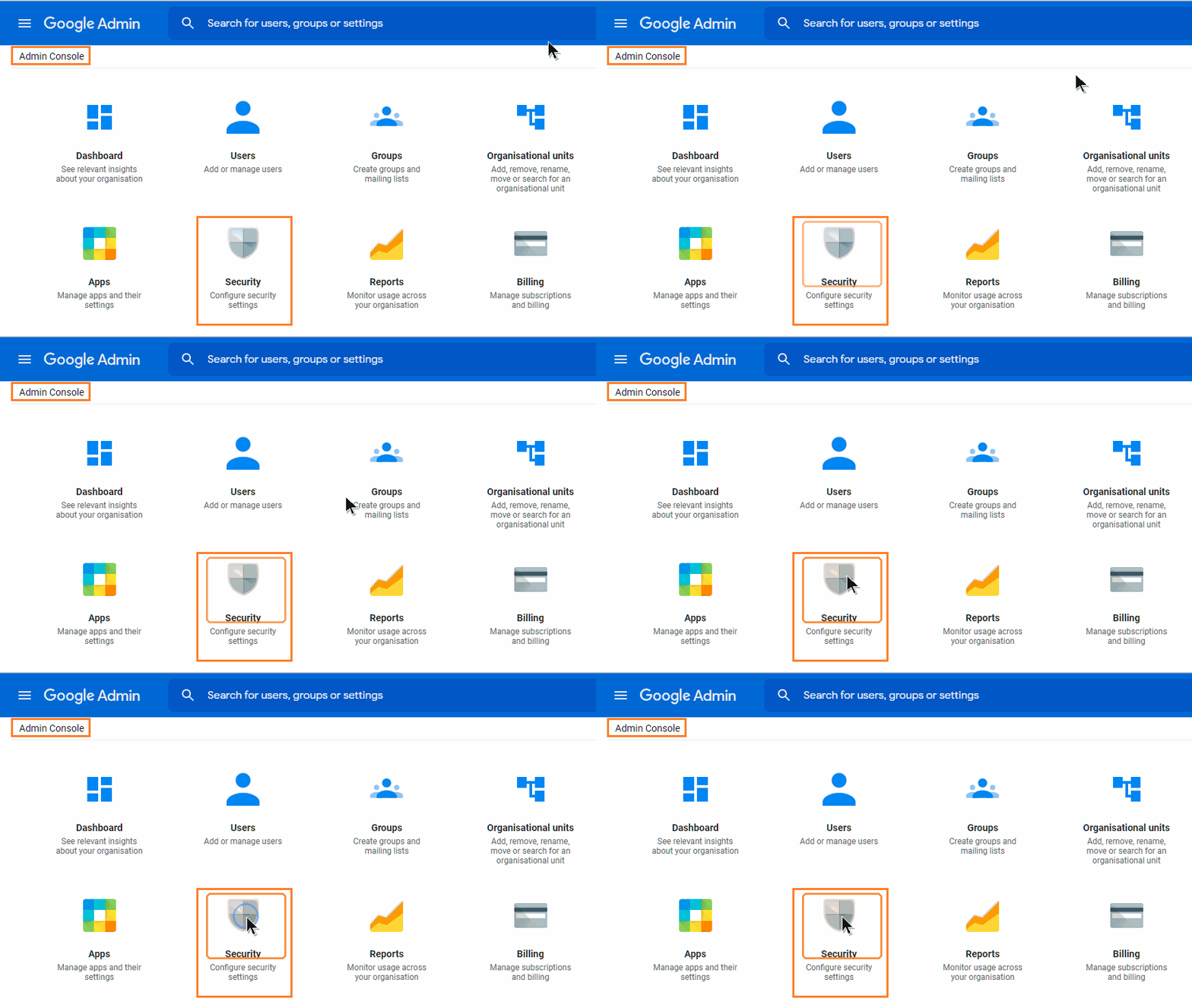
Step 2: Select Security from the Admin console home page.
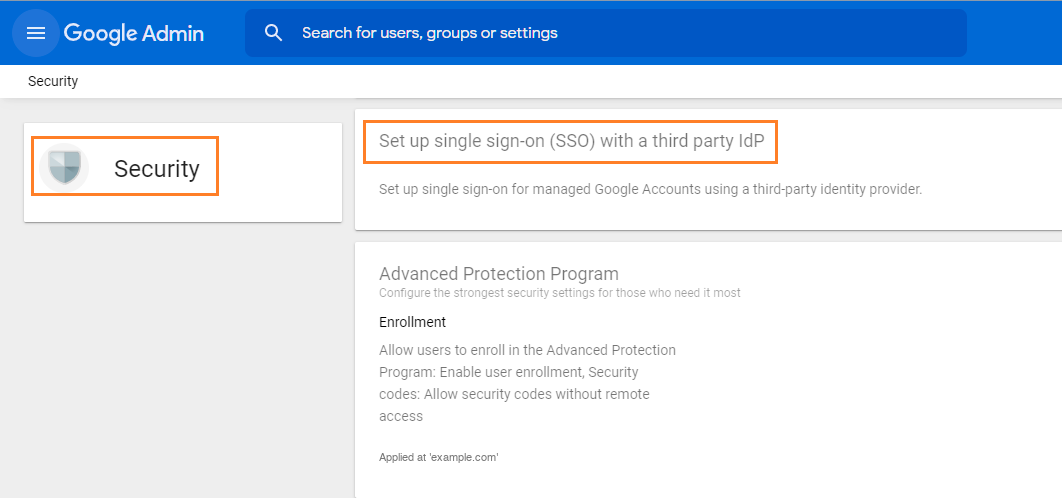
Step 3: Select Set up single sign-on (SSO) with a third party IdP.
Step 4: Select Set up SSO with third-party identity provider, enter the IdP details, and click Save.
Sign-in page URL : https://sso.example.com/saml-sso/google
Sign-out page URL: https://sso.example.com/saml-slo/google
Verification certificate: upload the IdP signing certificate (for example IdP_Signing_Certificate.cer)
Use a domain-specific issuer: selected
Change password URL: https://sso.example.com/change-password (optional)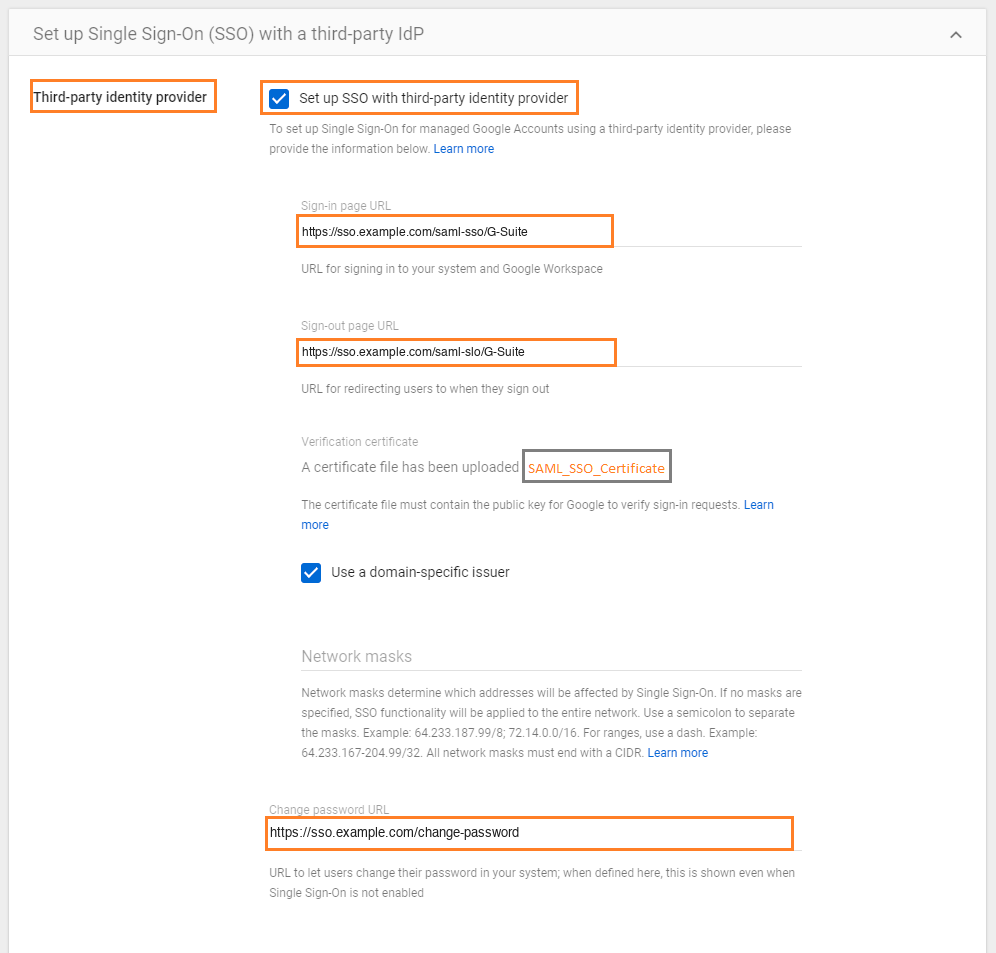
Test sign-in#
IdP-initiated sign-in#
- Open the portal or application launcher of your IdP (for example
https://sso.example.com). - Sign in with your corporate credentials and complete any multi-factor authentication your IdP requires.
- Select the Google Workspace application tile. The IdP sends a signed SAML assertion to Google and you land in your Google Workspace account without a further password prompt.
SP-initiated sign-in#
Open a private browser window and go to https://mail.google.com.
Enter your Google Workspace address, for example
demo@example.com, and click Next.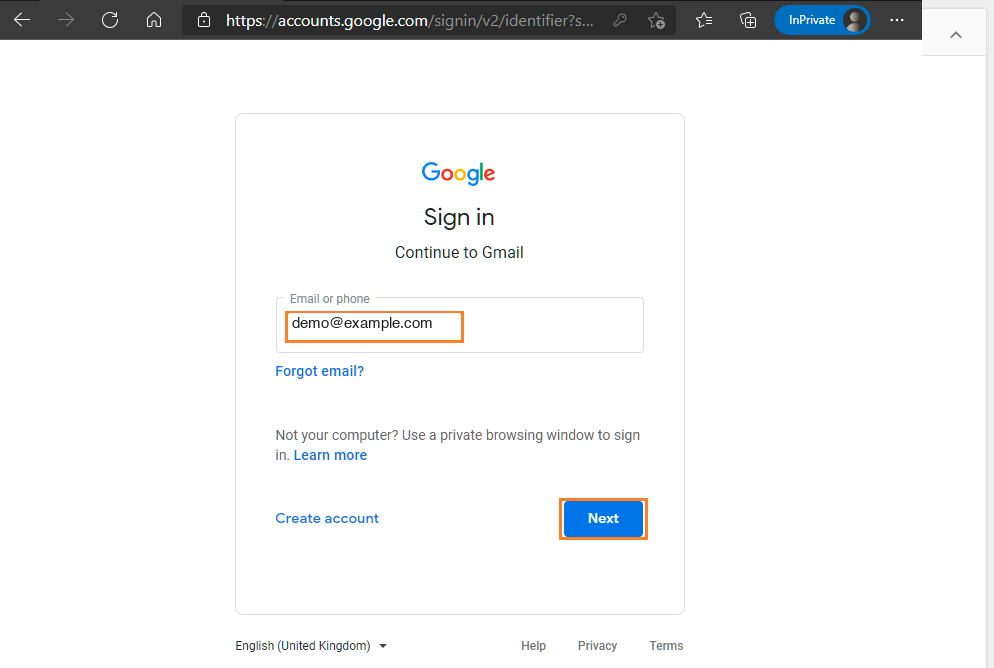
Google redirects the browser to your IdP sign-in page. Enter your corporate credentials and complete multi-factor authentication if prompted.
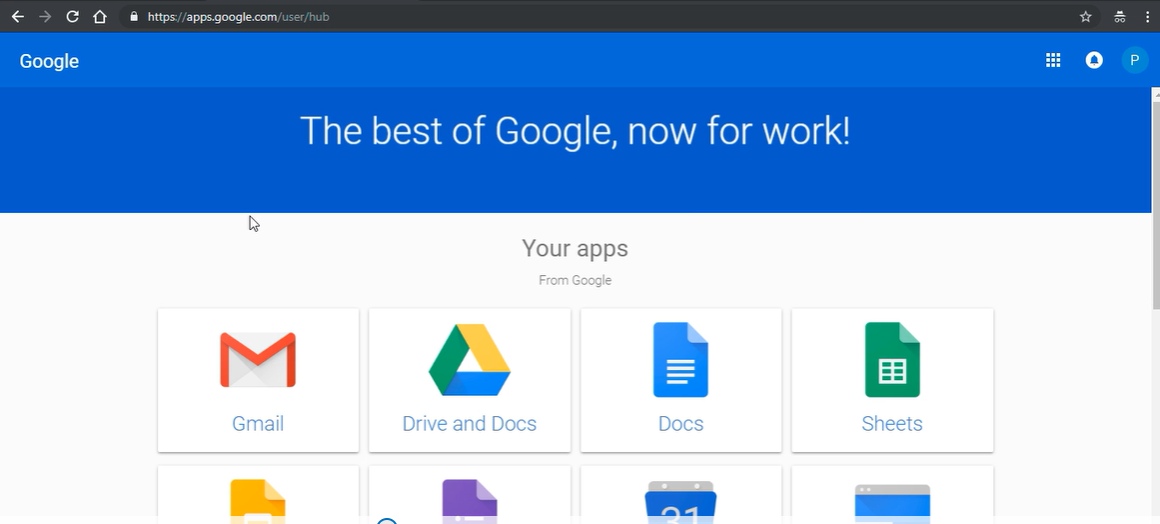
After successful authentication the IdP redirects you back to Google and your mailbox or Google Workspace home page opens.
Troubleshooting#
- Invalid assertion or signature error: the certificate uploaded to Google does not match the key the IdP uses to sign assertions. Upload the current IdP signing certificate again.
- Audience or issuer mismatch: compare the Entity ID and Issuer configured in the IdP with the values Google expects, especially when a domain-specific issuer is selected.
- User not found: the NameID sent by the IdP must equal the user's Google Workspace primary email address.
- Clock skew: make sure the IdP server and your devices use synchronized time (NTP).
- Use a SAML tracer browser extension to inspect the request and response when diagnosing sign-in problems.